PDF RAG
Chat with your PDFs — upload a document, ask questions in plain English, and get cited answers from a self-hosted RAG stack you can spin up with one Docker command.
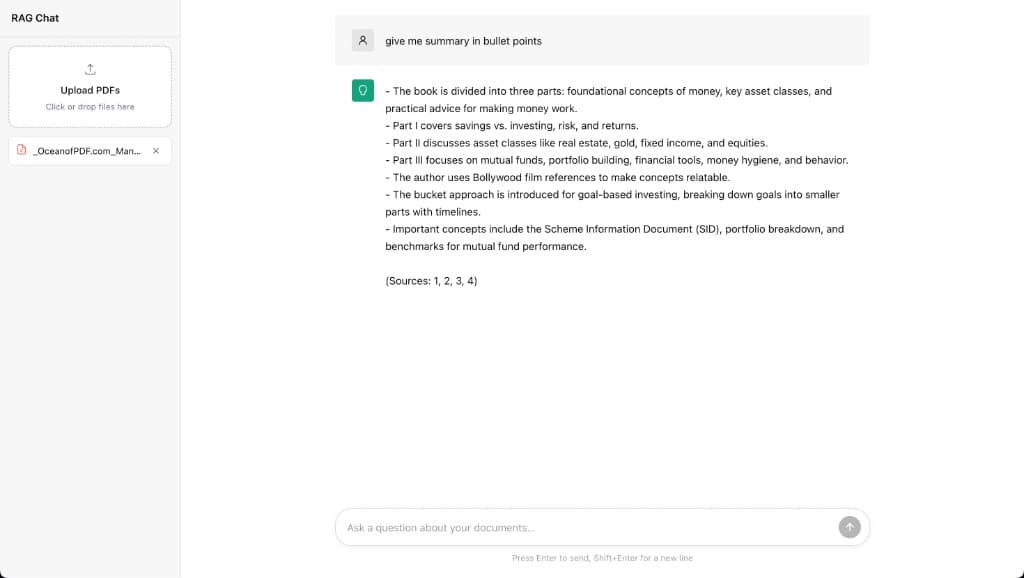
Why
You download a dense PDF—a textbook, a report, a contract—and need answers fast. Skimming hundreds of pages or pasting chunks into a generic chatbot loses context and trust. PDF RAG is built for that moment: drag a file into the sidebar, ask for a bullet-point summary or a specific detail, and get a response grounded in your document with source citations so you can verify every claim. Under the hood it is a three-service stack meant to run anywhere, not just on a laptop in a Jupyter notebook. Qdrant holds embedded chunks in a pdf_chunks collection with persistent storage across restarts. A Node backend ingests uploads, chunks and embeds PDFs, and runs retrieval-augmented generation against that index. A React frontend is the chat surface you see in the demo—upload on the left, conversation on the right. Docker Compose ties it together with ordered health checks: Qdrant must be healthy before the API starts, and the API must pass /health before the UI comes up. Named volumes keep uploads and vector data between runs. Pre-built images on Docker Hub (vjnvisakh/rag-backend, vjnvisakh/rag-frontend) mean docker compose up is enough to go from zero to chatting with your own files.
Tech
How to run
- 1
Prerequisites
Install Docker and Docker Compose on your machine.
- 2
Create the compose file
Save the Docker Compose configuration below as docker-compose.yml in an empty project folder.
- 3
Configure API keys
Create a backend/.env file next to docker-compose.yml with the credentials your backend needs (for example, an OpenAI API key for embeddings and chat).
# backend/.env — add the variables required by rag-backend OPENAI_API_KEY=your_key_here - 4
Start the stack
From the folder containing docker-compose.yml, pull images and start all services. Compose waits for Qdrant and the backend health checks before starting the frontend.
docker compose up -d - 5
Open the app
When all containers are healthy, open the UI at http://localhost:5173. The API is available at http://localhost:3000 and Qdrant at http://localhost:6333.
- 6
Upload and chat
Upload one or more PDFs from the sidebar, then ask questions in the chat. Answers are grounded in your documents with source citations.
- 7
Stop the stack
Uploaded files and vector data persist in Docker volumes between runs.
docker compose down
Docker Compose
services:
  qdrant:
    image: qdrant/qdrant:latest
    ports:
      - "6333:6333"
      - "6334:6334"
    volumes:
      - qdrant-storage:/qdrant/storage
    healthcheck:
      test: ["CMD", "bash", "-c", "echo > /dev/tcp/127.0.0.1/6333"]
      interval: 10s
      timeout: 5s
      retries: 3
      start_period: 10s
    restart: unless-stopped

  backend:
    image: vjnvisakh/rag-backend:latest
    ports:
      - "3000:3000"
    environment:
      PORT: 3000
      QDRANT_URL: http://qdrant:6333
      QDRANT_COLLECTION: pdf_chunks
    env_file:
      - ./backend/.env
    volumes:
      - backend-uploads:/app/uploads
    depends_on:
      qdrant:
        condition: service_healthy
    healthcheck:
      test:
        [
          "CMD",
          "node",
          "-e",
          "fetch('http://localhost:3000/health').then((r) => process.exit(r.ok ? 0 : 1)).catch(() => process.exit(1))",
        ]
      interval: 10s
      timeout: 5s
      retries: 3
      start_period: 10s
    restart: unless-stopped

  frontend:
    image: vjnvisakh/rag-frontend:latest
    ports:
      - "5173:80"
    depends_on:
      backend:
        condition: service_healthy
    restart: unless-stopped

volumes:
  backend-uploads:
  qdrant-storage:
What's next
- Auth and multi-tenant collections
- Streaming answers in the UI
- Hybrid search (keyword + vector)
- Single-VPS deploy with TLS